

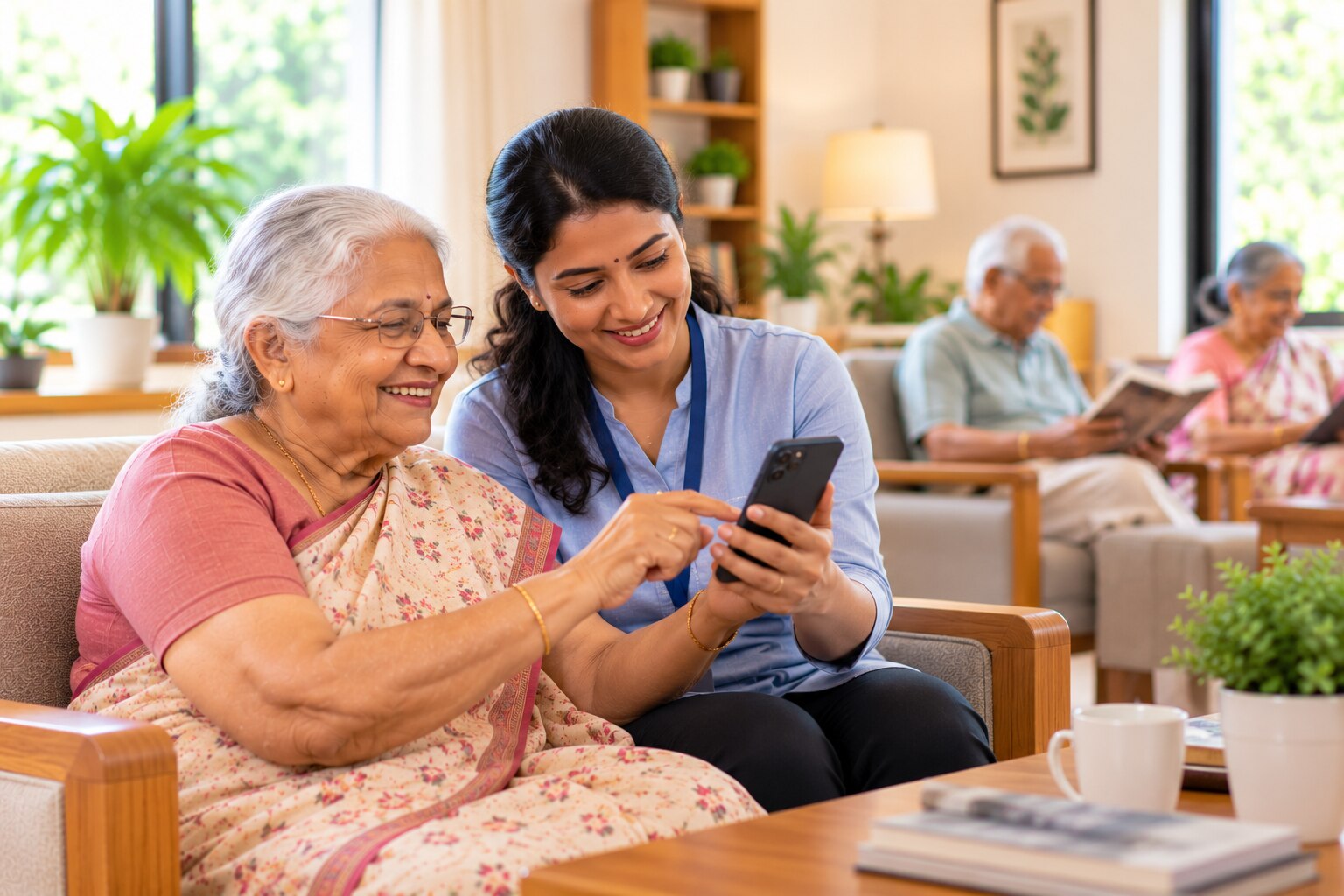
Mobile access can mean a resident’s own smartphone, a shared tablet, a staff-assisted account, or a simple phone call when an app is impractical. By the end, you will know what equipment and support are needed, how to arrange family contact, and which privacy, accessibility, and emergency safeguards to confirm before granting access.
Key takeaways
- Match the device to the resident’s vision, hearing, memory, and hand movement.
- Use large icons, saved contacts, and a written call routine.
- Set family permissions and emergency contacts before granting app access.
- Test Wi-Fi, charging, notifications, and staff support before relying on calls.
Choose the Right Mobile Access Method for the Resident
Mobile access is a choice of device, connection, and support—not a requirement that every resident install an app. Match the method to the resident’s vision, hearing, memory, hand movement, confidence, and daily routine.
| Option | What it involves | What the resident needs |
|---|---|---|
| Personal smartphone | Calls, video calls, messages, photos, and a facility-managed app | Android phone or iPhone, charging, Wi-Fi or SIM with mobile data, and help remembering a PIN or password |
| Shared tablet | A staff-supervised device for scheduled calls, notices, and family messages | A charged tablet, reliable Wi-Fi, a clear booking process, and staff available during the call |
| Staff-assisted account | Staff open the account, arrange contacts, and support communication | Recorded consent, approved family contacts, and staff time during busy shifts |
| Phone-only access | Voice calls or SMS without an app | Any working phone, a SIM card with network coverage, and a family number or call schedule |
Old age home resident mobile app access should be recorded as the resident’s selected method, not assumed from their emergency-contact details. A relative needs permission for each category—calls, messages, photographs, health information, or location—and the resident must be able to withdraw it.
Check signal and Wi-Fi in bedrooms and common areas, charging access, Marathi or other language needs, and whether touch targets, contrast, text size, captions, and voice support work in practice. WCAG 2.2 offers accessibility criteria, but staff testing reveals problems a demonstration misses.
Use an Old Age Home Resident App Step by Step
A resident does not need a personal smartphone for old age home resident mobile app access. Use a resident-owned phone, a supervised shared tablet, a staff-assisted account, or phone calls and SMS when the app is unsuitable.
1. Confirm the device and connection. Check that the Android phone, iPhone, or tablet has a screen lock, charging routine, current software, and reliable Wi-Fi or mobile data in the resident’s room and common areas.
2. Install the app from Google Play or the Apple App Store. Check the developer name before downloading, and do not install an unknown file sent by message.
3. Open the app and accept only necessary permissions. Allow notifications or microphone access when calls require them; refuse contacts, photos, location, or camera access unless the resident agrees to that use.
4. Sign in with the registered mobile number, email address, or one-time SMS code. Store recovery details securely, never on a note beside a shared device, and ask staff to help reset a forgotten PIN.
5. Add a family contact using the resident’s recorded consent. Select exactly what that person may use, such as voice calls, video calls, messages, or photographs; emergency-contact status alone does not grant access.
6. Choose “Book call” or “Start call,” select the approved contact and time, then test sound, camera, and captions. Staff can assist without taking over the resident’s account.
7. If the call fails, charge the device, reconnect Wi-Fi, restart the app, and check notifications. Record repeated failures and use a phone call or SMS fallback.
An old age home app in Pune also needs Marathi or other language support, readable text, and staff coverage during busy shifts. Recheck consent before recording, photographing, adding relatives, or starting group calls.
Make Online Calls Easy for Older Adults and Families
Schedule every call and have a staff member help the resident answer it; handing someone an app is not enough when memory, vision, hearing, mobility, language, or confidence creates barriers. Post a large-print timetable, use a quiet, well-lit room, and give families a backup telephone number.
Adapt the call setup to the resident:
- Increase text size, contrast, and touch-target size; WCAG 2.2 gives testable accessibility criteria.
- Turn on captions or use a telephone call when hearing makes video difficult.
- Use voice instructions, a simplified contact list, or a staff-assisted call when reading or memory is limited.
- Position the tablet on a stable stand and offer a reachable mute or end-call button for tremor or arthritis.
- Provide Marathi or another familiar language, with picture-based instructions where needed.
Senior care technology in Pune should not make Wi-Fi, a smartphone, mobile data, or digital confidence conditions for family contact. Keep phone calls, SMS, printed messages, visits, and staff-mediated calls available.
Agree what happens if the resident becomes distressed, the battery dies, or the call drops. A video app is not an emergency system, so publish a separate emergency number and escalation process; an unanswered call proves neither danger nor staff awareness.
Show the resident how to end a call, mute or block a contact, report unwanted messages, and request corrections to a name or relationship. Let them change their mind about online contact.
Set Permission, Privacy, and Emergency Rules Before Connecting
An emergency-contact label is not consent. Before granting family access to an old age home, staff should record the resident’s permission, the approved relative, and the exact categories allowed: voice calls, video, messages, photographs, health updates, or location. Set an expiry or review date, and remove access immediately when the resident withdraws consent.
Use a written procedure:
- Verify the relative’s identity through a known phone number or an in-person check. Never approve access solely from an app request.
- Record whether the resident permits direct contact, staff-scheduled calls, shared-device use, or staff-mediated messages. Give the resident a simple way to change this choice.
- Limit staff and family accounts to the approved information. Keep an access log showing who viewed or sent something, and investigate unexpected logins, screenshots, or disclosures.
- Teach the resident to end a call, mute or block a contact, report unwanted messages, and request corrections to a name, relationship, or phone number.
- Write the failure plan: who checks a missed call, who helps with password recovery, and which phone number staff use if the app, Wi-Fi, battery, or device fails.
Do not make internet access the only route to connect with elderly residents online. Keep phone calls, SMS, printed messages, visits, and staff-assisted calls available, and use emergency services or the home’s designated responder for urgent danger rather than waiting for an app notification.
Test the Home’s Process Before You Rely on It
A polished demonstration proves almost nothing if it happens beside the router with a technician present. Test the process where residents actually use it, during a busy shift, with different phones and ability levels.
Ask the home to demonstrate:
- A call from a bedroom and a common area, including what happens when Wi-Fi, mobile signal, or power fails.
- Marathi or other language support, large text, volume control, captions, and help for a resident who forgets a PIN.
- Consent before a relative receives messages, photographs, health information, location, or video access; confirm that permission can be withdrawn.
- A lost-device response, screen lock, automatic updates, restricted app installation, charging routine, and account logout. Reject any shared device with a master password written beside it.
- A supervised trial with scheduled calls, recording completed calls without staff help, login failures, password resets, accidental disclosures, and charging failures.
| Mode | Ask the home to demonstrate | Acceptable fallback |
|---|---|---|
| Personal app | Sign-in, contact approval, password reset | Phone call or SMS |
| Shared tablet | Resident selection, logout, charging, storage | Staff-mediated call |
| Staff-assisted account | Identity check, consent record, call scheduling | Printed message or visit |
| Phone-only access | Reliable calls and SMS without internet | In-person family contact |
For senior care technology in Pune, continued voluntary use matters more than a successful first call. Ask whether residents kept using it after the trial. If you are assessing Arpan Old Age Home, request this same evidence rather than assuming family access to an old age home is automatic.
Frequently asked questions
What is the best mobile access method for an old age home resident?
Choose a smartphone, tablet, assisted call, or staff-supported device based on the resident’s vision, hearing, memory, hand movement, confidence, and routine.
How can families use an old age home resident app?
Install the approved app, sign in with the permitted account, enable only necessary notifications, save trusted contacts, and practise one call with the resident.
How can you make online calls easier for older adults?
Use a device with a clear screen and loud audio, place it on a stable stand, save contacts, schedule calls, and keep a simple written call guide nearby.
What privacy and emergency rules should families set before connecting?
Agree who can view updates or call, protect login details, define consent for photos and video, and confirm which contact or staff member handles emergencies.
What should you test before relying on mobile access?
Test the internet connection, charging, camera, microphone, speaker, notifications, login recovery, staff availability, and the resident’s ability to complete a call.